
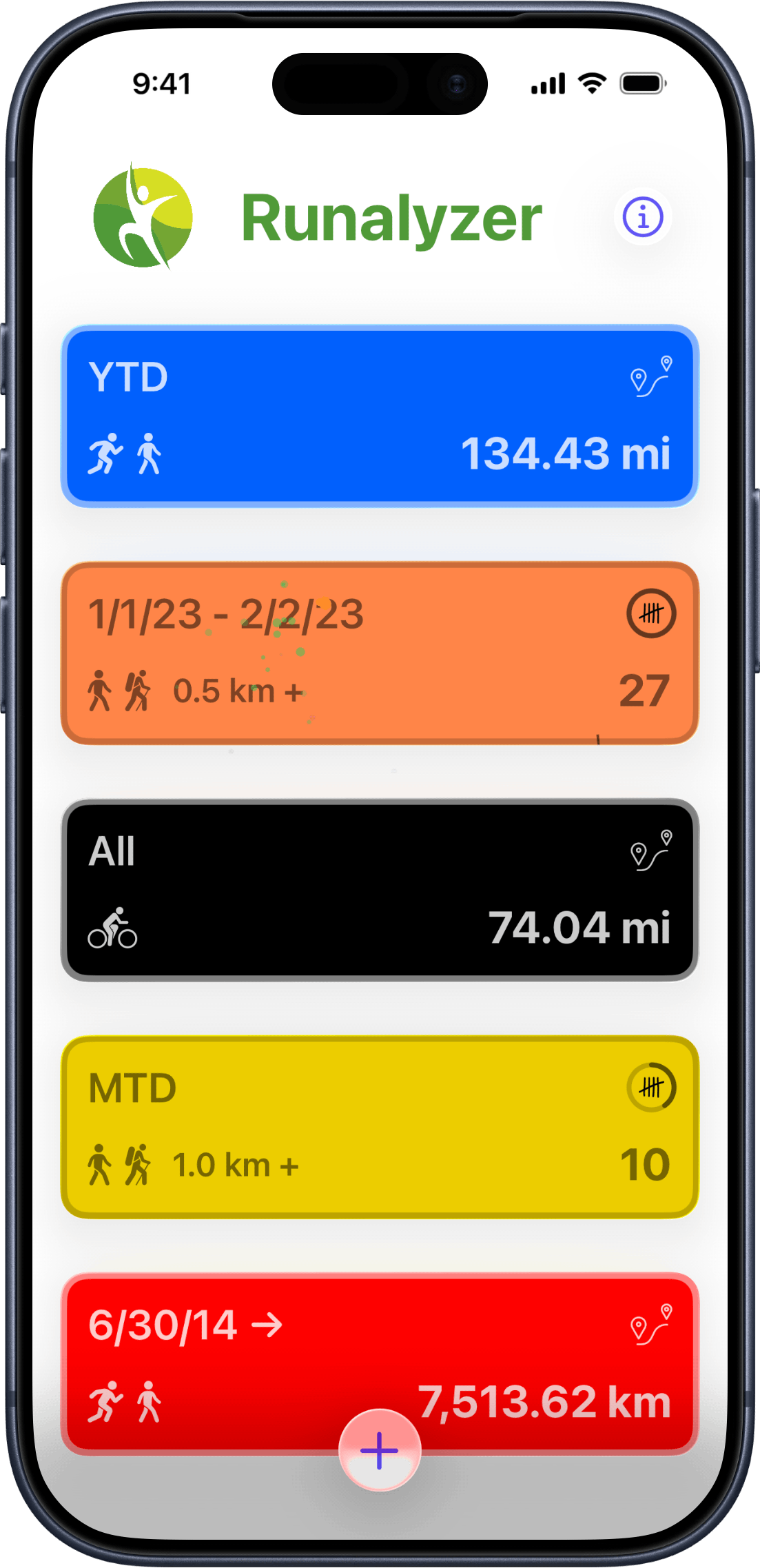
Everything you want to know, the moment you open the app
How many miles have you run this month? How close are you to your yearly goal? How many 5Ks have you knocked out so far? With most fitness apps, finding these answers means tapping through several screens — if you can find them at all.
Runalyzer puts the answers on one screen. You decide what goes on it. Each tile is a question you care about, answered live from your Apple Health data every time you open the app.
Tap a tile to dig in. Drag to rearrange. Swipe to edit or remove. It's your dashboard.
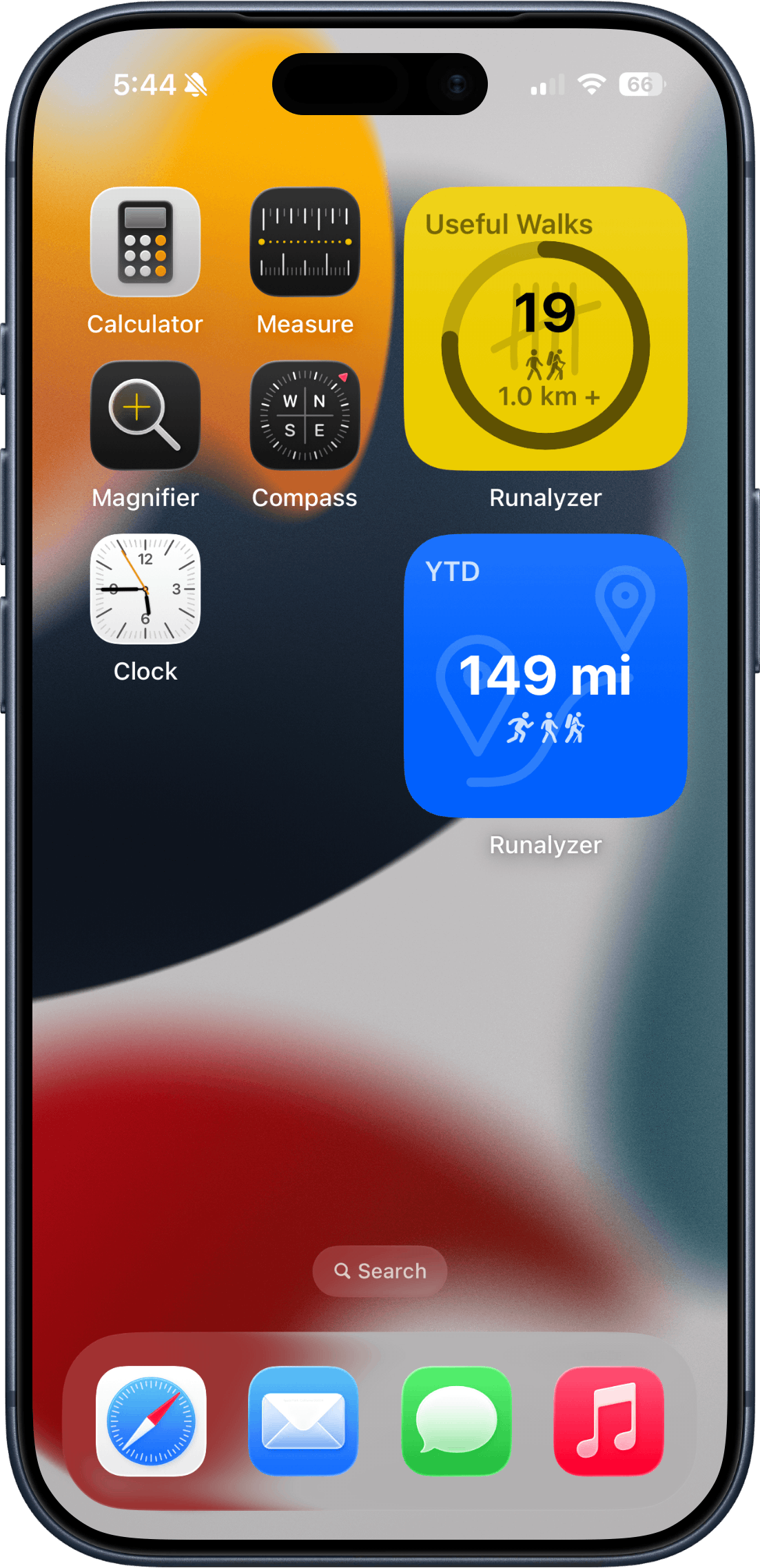
Your stats on your home screen
Add a Runalyzer widget to your iPhone home screen and your most important metric is always visible — no app to open. Your current value and goal progress, right there alongside everything else on your phone.
Each widget is tied to one of your metrics. Add as many as you like — one for weekly mileage, one for your annual 5K count, one for cycling distance. Whatever you want at a glance.
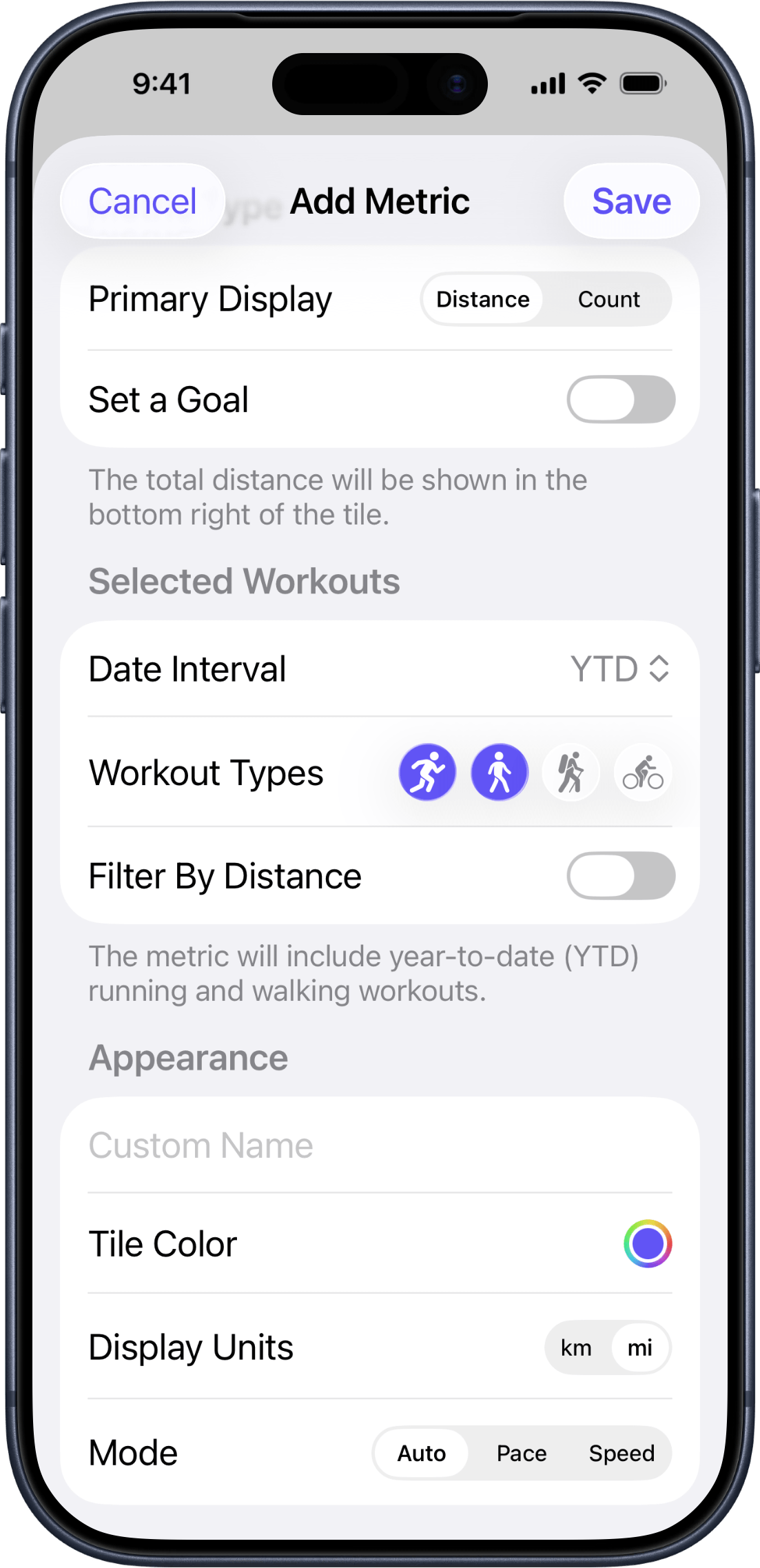
Track exactly what matters to you
Tap + and tell Runalyzer what you want to see. You pick:
- What to show — total distance covered, or number of workouts completed
- When — today, this week, this month, this year, since a specific date, or all time
- Which activities — runs, walks, hikes, rides, or any mix of them
- Your preferred units — kilometers or miles
- A name and color that make it yours
- A goal to chase, if you want one
Add as many tiles as you like. Each one is completely independent.
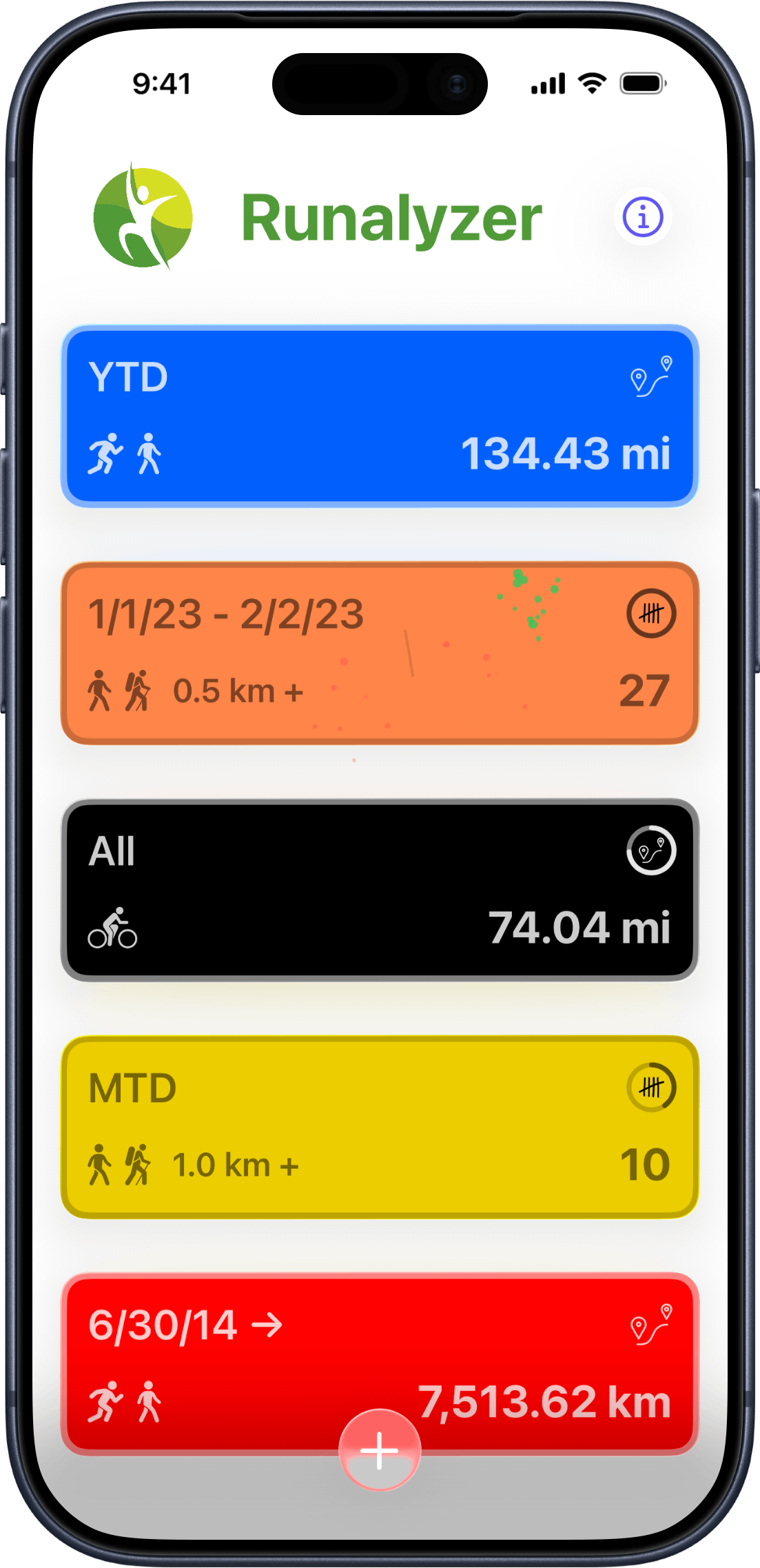
Give yourself something to chase
Add a goal to any tile and a progress ring appears, filling up as you close in on your target. Hit it, and Runalyzer celebrates with a fireworks animation.
Set a goal once and forget about the admin. Repeating goals reset themselves automatically at the end of each period — your weekly mileage goal resets every Monday, your monthly goal on the first of the month. One-time goals stick around until you reach them.
Either way, you always know exactly where you stand.
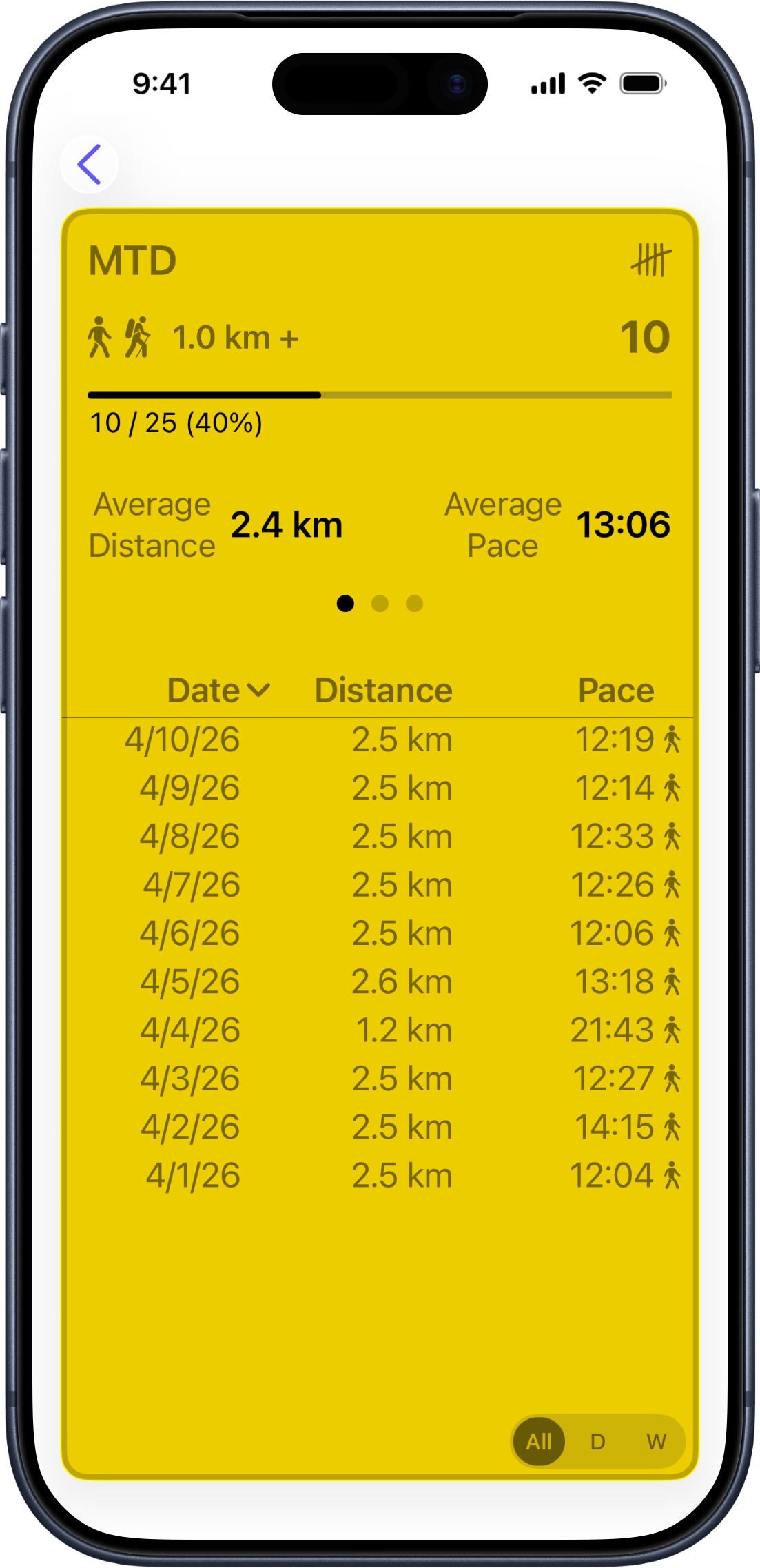
Tap any tile to see the full picture
Every tile has a detail view waiting behind it. Tap to see a full breakdown of your training for that metric:
- Your total front and center, big enough to read at a glance
- How far along you are toward your goal
- Your average distance per outing
- Your average pace — or speed if you're tracking cycling
Runalyzer remembers where you left off, so it always opens on the tab, sort order, and view you used last.
See how you're improving over time
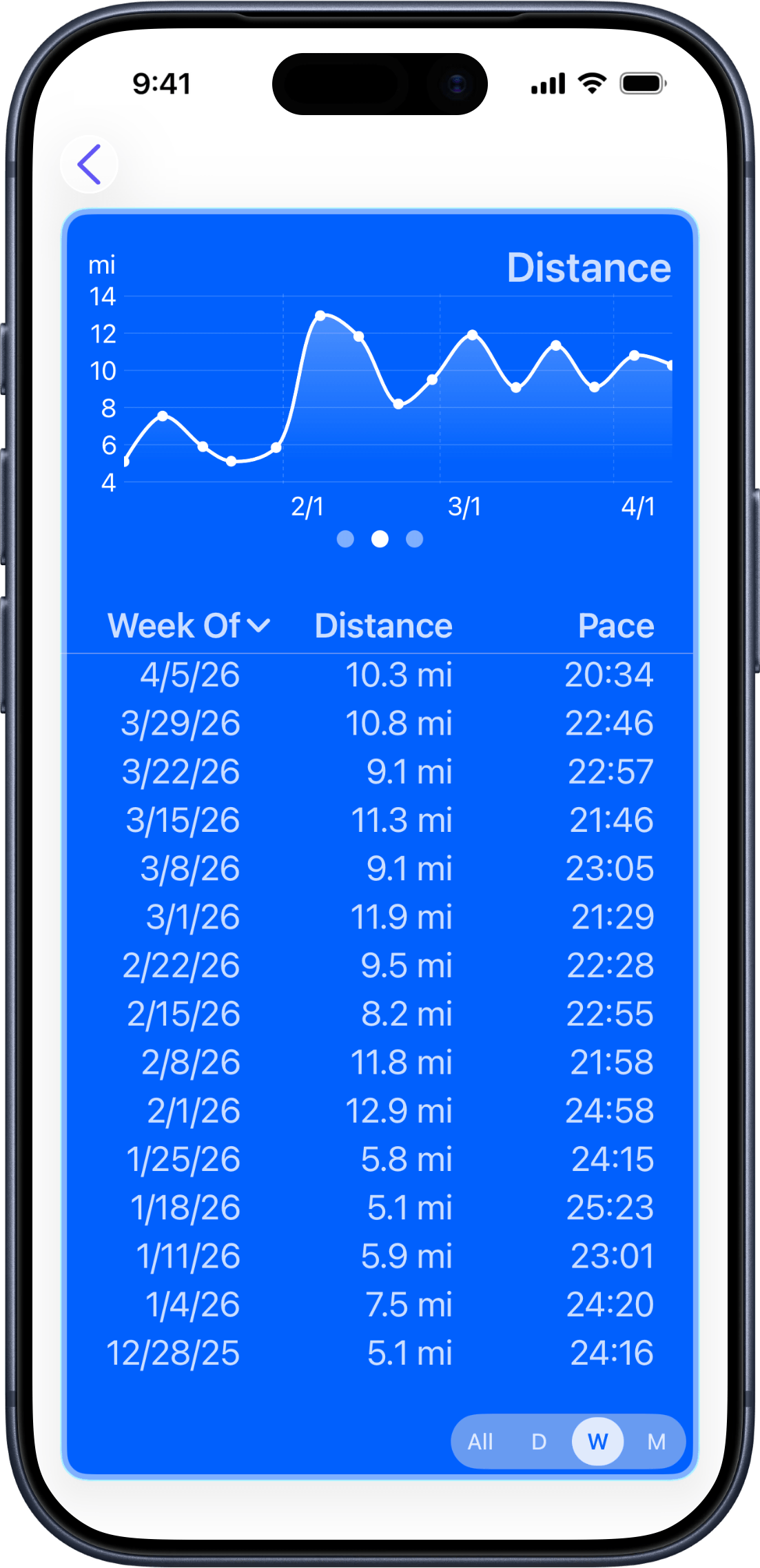
Numbers are great, but seeing a trend is something else. Tap the chart tabs in any detail view to watch your training take shape over days, weeks, months, or the whole year.
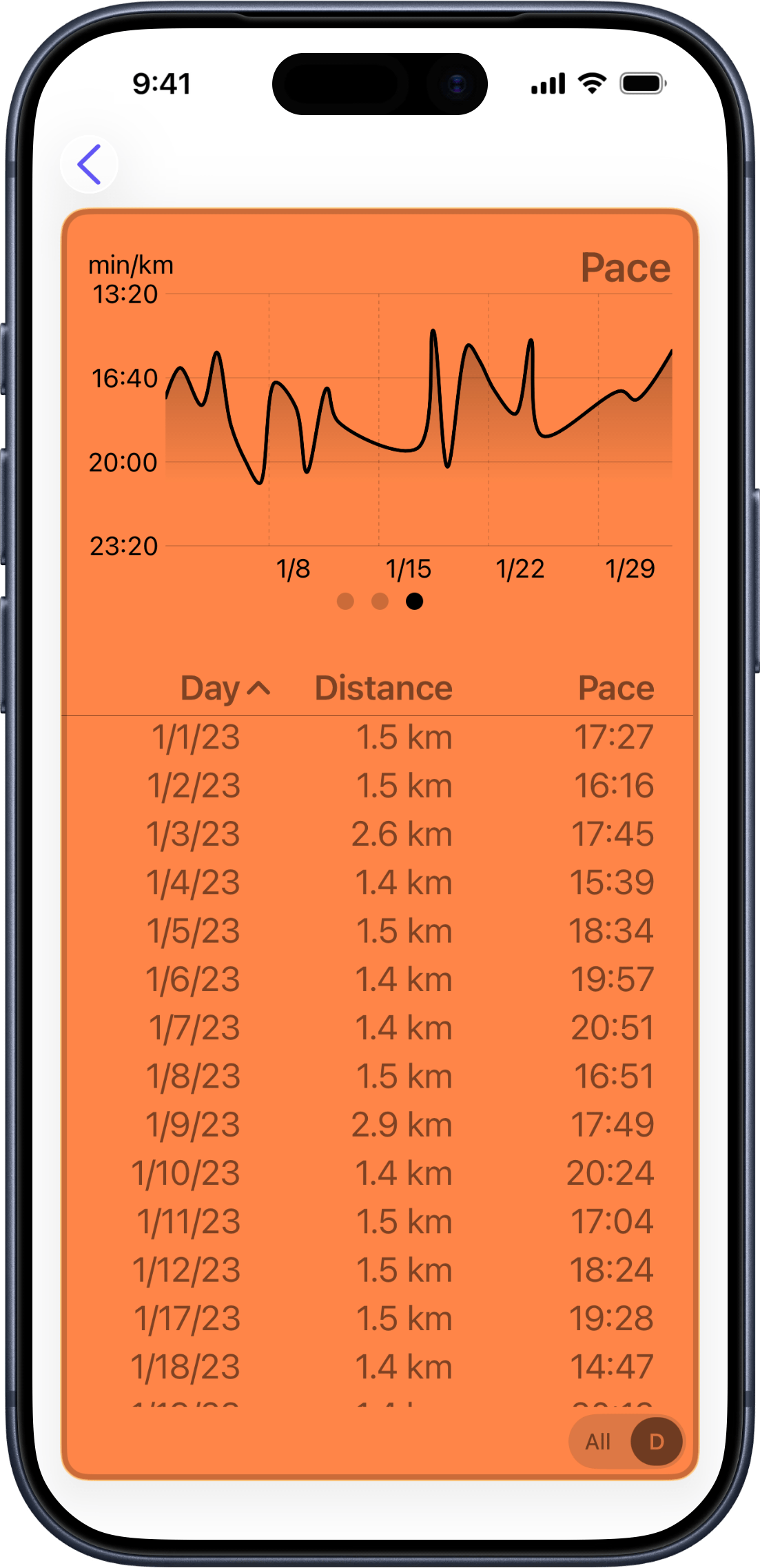
Every workout, right there
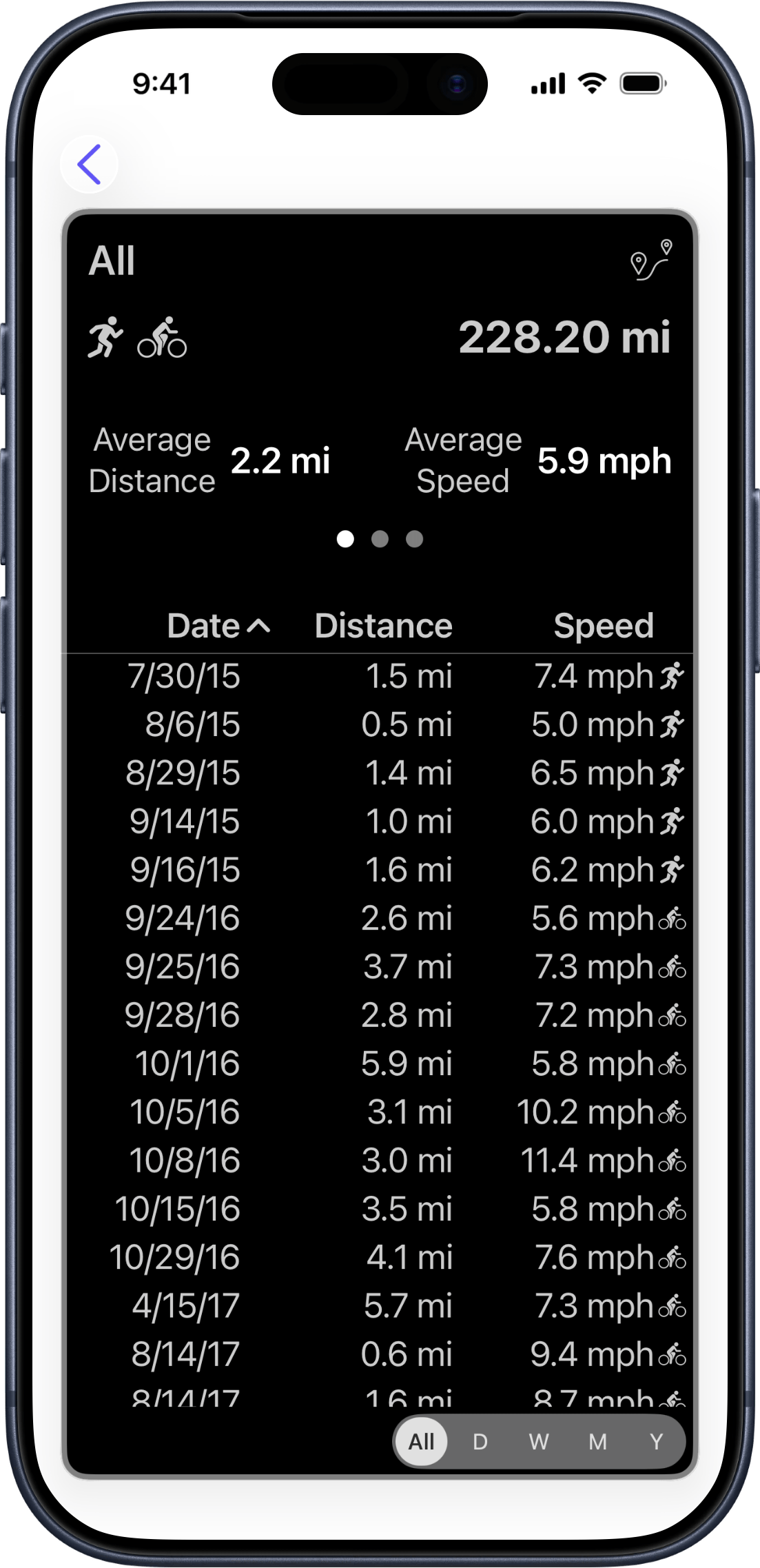
The list behind the number
Curious which run pulled your average pace up last month? Scroll down past the charts to find a full list of every workout that went into your total. Tap any column header to sort by date, distance, or pace — newest first, longest first, fastest first, whatever's useful right now.
A small icon next to each row shows the activity type, so a mixed metric with runs and rides is always easy to read.
Your preferred sort order is saved, so you come back to the same view every time.
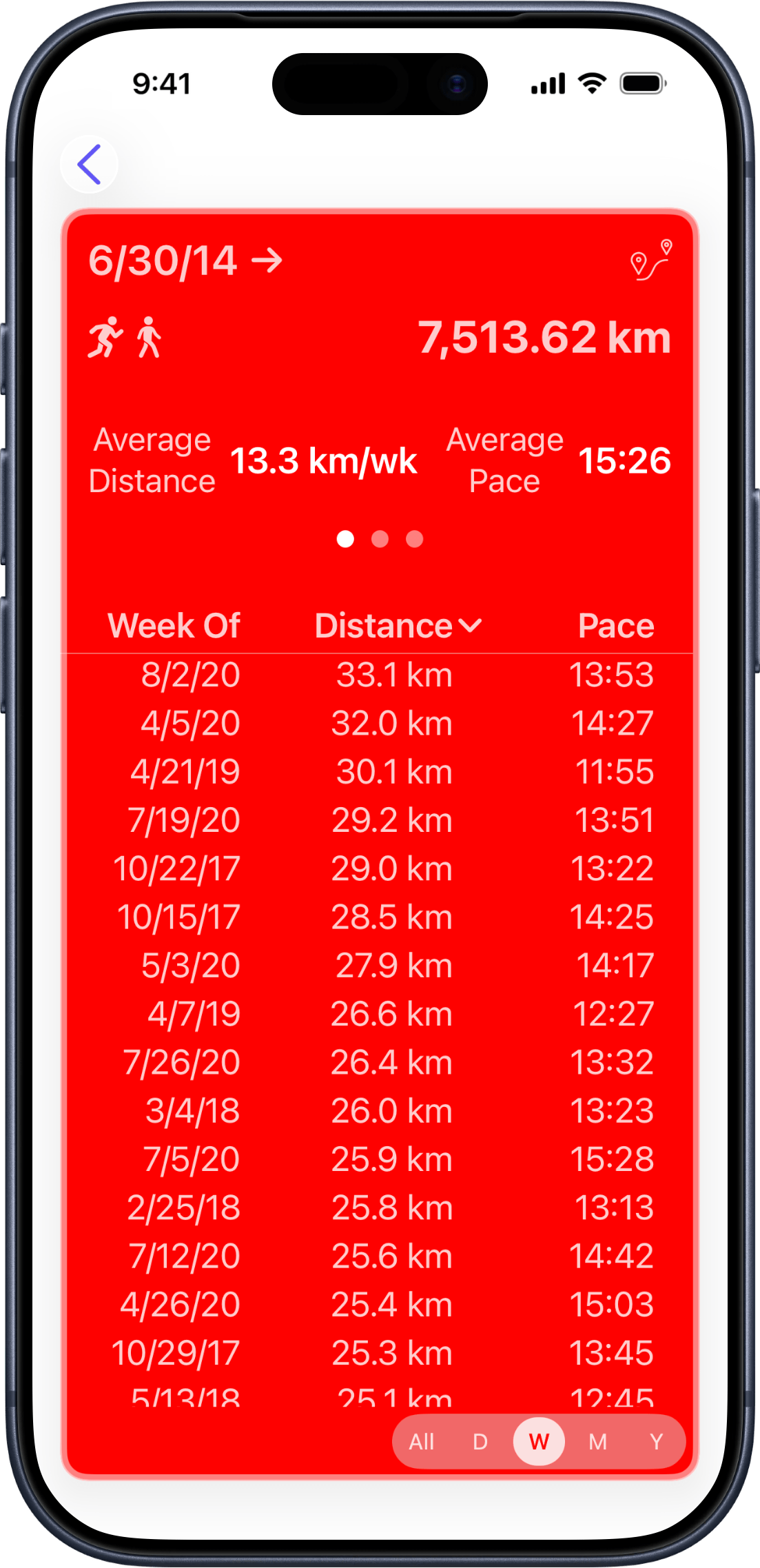
Zoom out to see the bigger pattern
Individual workouts tell you what happened. Weeks and months tell you how you're doing. Switch the list to group by week, month, or year and each row becomes a summary — total distance and average pace for that whole period.
The charts update to match, so you can flip between "show me every run" and "show me my weekly totals" with a single tap. Your grouping preference is saved per tile.
Filter by distance
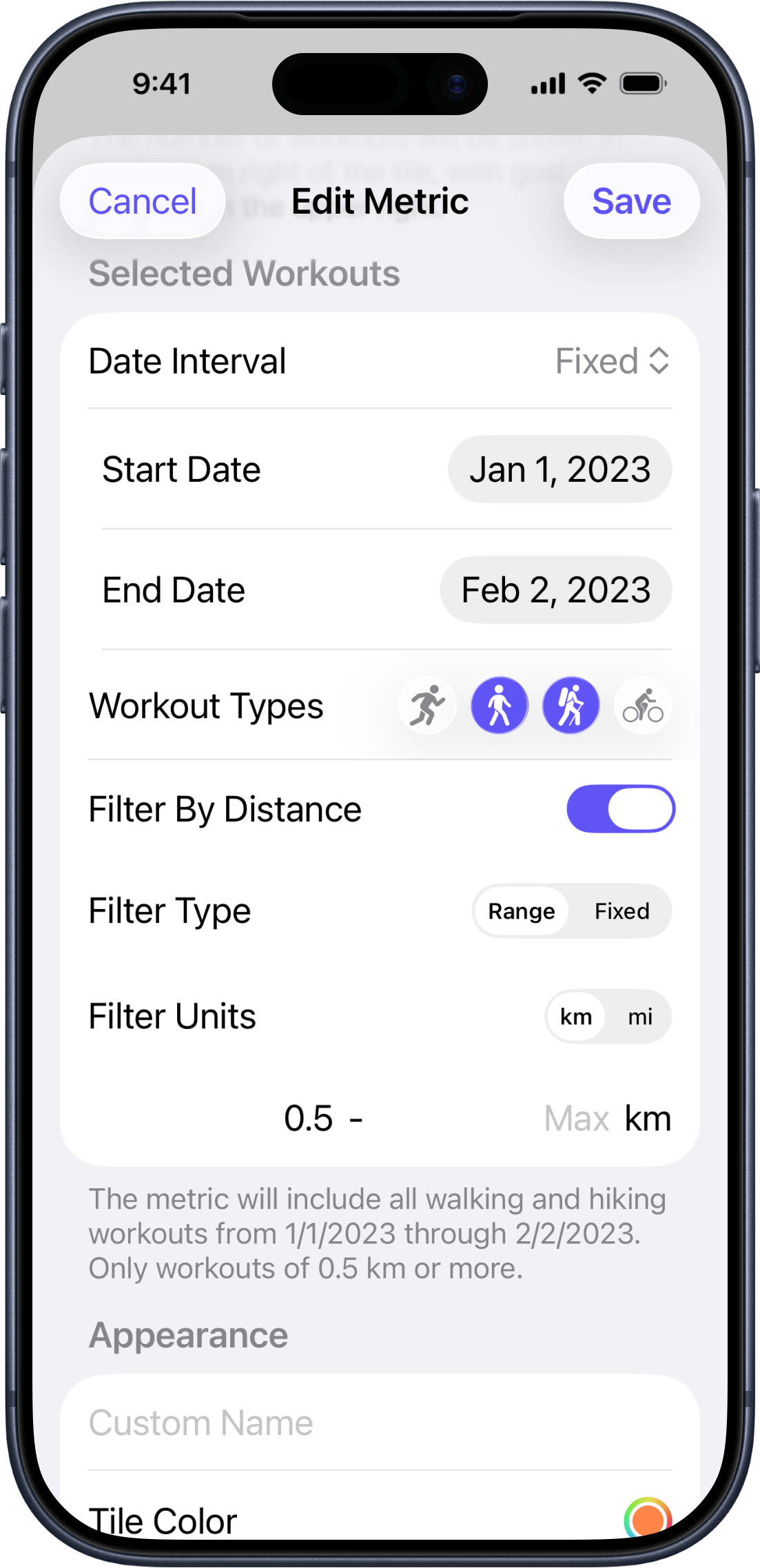
Only count the workouts that qualify
Not every run should count toward every goal. A distance filter lets you tell Runalyzer exactly which workouts belong in a tile:
- Range — only include workouts between two distances. Great for "my medium-long runs" (say, 10–20 km) without pulling in short recovery jogs or marathon days.
- Fixed — only include workouts close to a specific distance. Perfect for counting how many 5Ks, 10Ks, or half marathons you've done — the app handles the "close enough" math for you.
Everything you can customize
Here's a quick reference for every option available when you create or edit a tile:
| Option | What it does | Choices |
|---|---|---|
| Display Type | What the main tile number shows | Total Distance · Workout Count |
| Time Interval | Date range used to filter workouts | Today · Week-to-Date · Month-to-Date · Year-to-Date · Since [date] · Fixed range · All Time |
| Workout Types | Which activity types to include (any combination) | Running · Walking · Hiking · Cycling |
| Distance Units | Unit used for all distances, pace, and speed | Kilometers · Miles |
| Rate Display | Whether pace or speed is shown in stats and charts | Auto · Pace (min/km or min/mi) · Speed (km/h or mph) |
| Distance Filter | Only count workouts within a specified distance | Off · Range (min–max) · Fixed (target ± tolerance) |
| Custom Name | Label shown on the tile | Any text |
| Tile Color | Tile background color; text adjusts automatically for contrast | Any color (full color picker) |
| Goal | Optional target value; adds a progress ring to the tile | Any distance or count · One-time or Repeating |
Common questions
Is my health data safe? Does anything get uploaded?
Your data never leaves your phone. Runalyzer reads directly from Apple Health and does everything locally — no account, no server, no cloud sync. Apple Health's own permissions control what Runalyzer can see, and you can revoke access any time in Settings.
Which activities does Runalyzer work with?
Running, Walking, Hiking, and Cycling. If you've logged it in Apple Health as one of those, Runalyzer will find it. Activities like swimming or strength training aren't supported yet.
I run a lot of 5Ks. Can I count just those?
Absolutely — this is one of Runalyzer's most popular uses. Create a tile, set it to count workouts (not distance), choose Running, and turn on a Fixed distance filter at 5 km. Runalyzer will count every run close to that distance and ignore the rest. Works just as well for 10Ks, half marathons, or any other regular distance you run.
Can one tile cover multiple sports — like all my cardio together?
Yes. When setting up a tile, just toggle on whichever activity types you want included. Run, walk, hike, and ride can all count toward the same total if you want them to.
What's the difference between a one-time goal and a repeating one?
A one-time goal stays on your tile until you hit it — great for a specific target like "run 500 miles this year." A repeating goal resets itself automatically when the period ends, so your weekly mileage goal is ready to go again every Monday without you touching anything.
My tile shows pace, but I'd rather see speed. Can I change that?
Yes, per tile. When editing, look for the Rate Display option. Auto shows pace for running, walking, and hiking, and speed for cycling. You can override it to always show speed or always show pace, regardless of activity type.
My week starts on Sunday. Can I set that?
Open the iOS Settings app, find Runalyzer in the list, and you'll see a "Start Week On" option. Change it there and all your Week-to-Date tiles and weekly grouping will update to match.
How do I add a widget to my home screen?
Long-press an empty area of your home screen and tap + to add a Runalyzer widget. Once it's on your home screen, long-press the widget itself and tap Edit Widget to choose which of your metrics it displays. Repeat to add more — one widget per metric.
Do I need to open the app for it to update?
Yes — Runalyzer pulls fresh data from Apple Health each time you open it, so your tiles are always current. If you've just finished a workout and want to see it right away, pull down on the main screen to refresh everything instantly.
